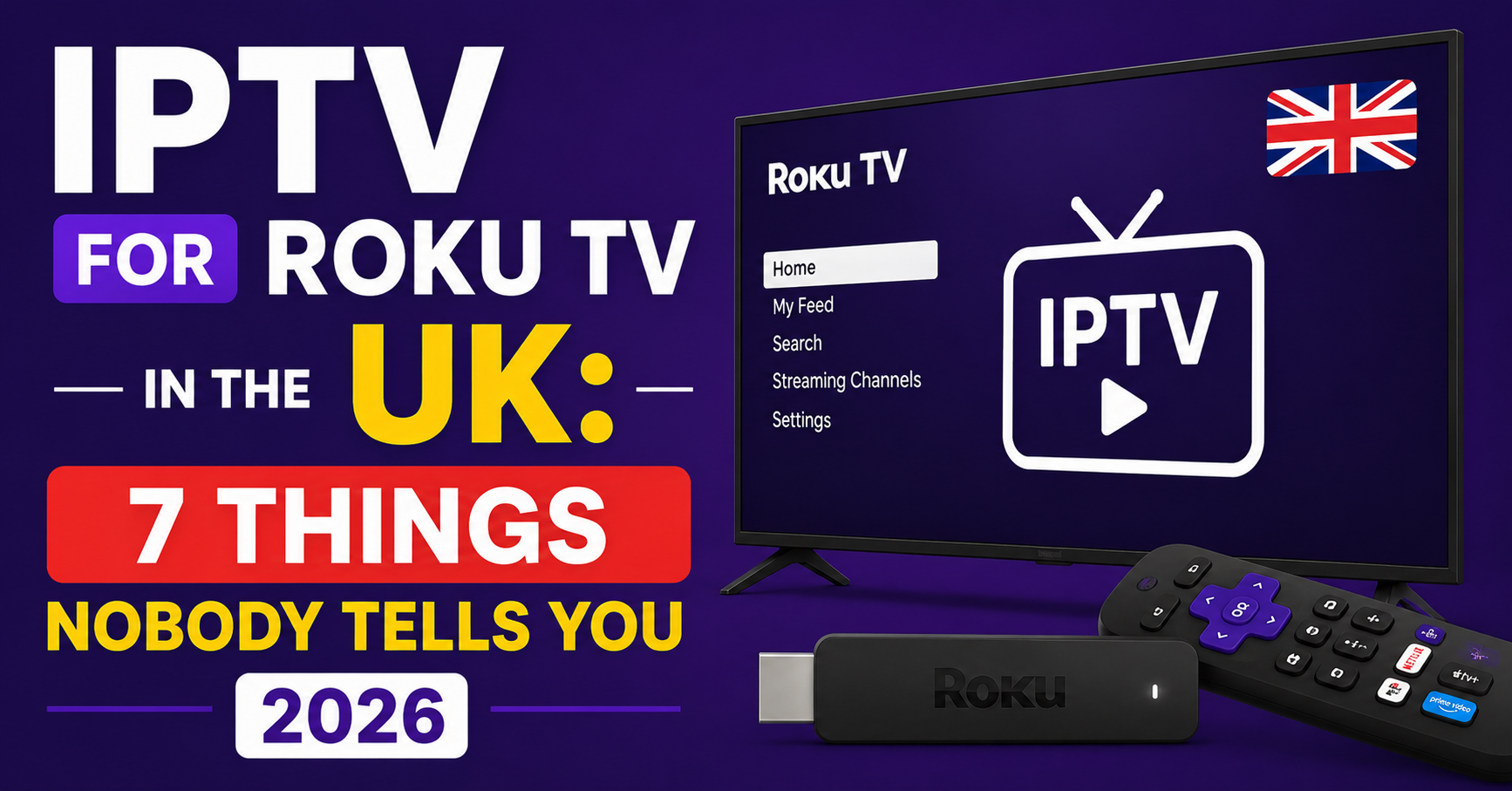
There is a persistent myth circulating across Reddit threads and YouTube tutorials that getting IPTV for Roku TV working in the UK is straightforward, download an app, enter your credentials, done. After years of managing UK IPTV reseller panels and watching customers raise support tickets with almost identical complaints, the reality is considerably messier. Roku’s walled garden creates friction that most IPTV guides conveniently skip past, and that friction costs subscribers hours of troubleshooting they were never warned about.
This guide does not recycle the standard setup walkthrough. It documents what actually goes wrong, why it goes wrong, and how operators and subscribers can navigate Roku’s restrictions without compromising stream quality or getting locked out during a major match.
Why Roku Makes IPTV Harder Than It Should Be
Roku runs one of the most locked-down app ecosystems in the consumer streaming device market. Unlike Android TV boxes or Fire Sticks, Roku does not allow sideloading APKs. That single constraint eliminates most of the conventional IPTV player apps, Tivimate, IPTV Smarters, and GSE Smart IPTV, immediately.
What Roku does permit is channel installation from its own Channel Store, plus a developer sideload method that requires:
- A Roku developer account (free, but registration required)
- Local network access between a PC and the Roku device
- Packaging and deploying a custom channel file manually
One reseller shared this with us bluntly: “Half my Roku customers gave up during developer mode activation because the instructions they’d found online were outdated. Roku changed the UI twice in 18 months.”
For IPTV for Roku TV to work reliably in 2025, subscribers need to understand which installation pathway their service provider actually supports, because not all IPTV providers have built Roku-compatible channels, and many resellers are still selling Roku-incompatible packages without disclosing that.
The Three Actual Ways to Get IPTV on a Roku Device
Option 1: The Private/Developer Channel Method
This is the most commonly used method for IPTV for Roku TV. Providers package their player as a private Roku channel and share a channel access code. Subscribers enter this code at my.roku.com, and the channel appears on their device.
The limitation: Roku restricts uncertified private channels. They can be delisted without notice, and Roku has historically purged IPTV-related channels during periodic enforcement sweeps. Providers who rely on a single channel code are exposing their customers to immediate service disruption.
What competent providers do differently: They maintain rotating backup channel codes and communicate them proactively, not reactively after customers have already raised tickets.
Pro Tip: If your IPTV provider cannot tell you immediately what happens to your Roku channel if the current one is pulled, that is a meaningful quality signal. Providers who have weathered channel removals before have backup plans ready. Those who haven’t don’t.
Option 2: Developer Mode Sideloading
This method gives more control but requires technical comfort. You enable developer mode on the Roku via a specific remote button sequence, access the device’s local IP address through a browser, and upload a packaged channel file.
The process works. The frustration for subscribers is that it breaks entirely if:
- The Roku firmware updates and resets developer mode
- The channel package becomes incompatible with newer Roku OS versions
- The user’s router reassigns the device IP and they lose browser access
After reviewing dozens of support tickets from Roku users specifically, a clear pattern emerged: developer mode issues spike sharply after Roku automatic firmware updates, which Roku pushes silently, without user-facing notifications.
Option 3: Screen Mirroring from Android
For subscribers who want IPTV for Roku TV without the channel installation complexity, screen mirroring from an Android phone or tablet is a functional workaround.
Works with: Tivimate, IPTV Smarters, GSE Smart IPTV on Android mirrored to Roku.
Limitation: Stream quality is dependent on the phone’s processing load and Wi-Fi stability. It introduces a secondary failure point and is not suitable as a permanent primary setup. Here’s how the three methods compare:
| Method | Technical difficulty | Risk of disruption | Recommended for |
|---|---|---|---|
| Private Channel Code | Low | Medium | Most subscribers |
| Developer Mode | Medium | Low (if maintained) | Technical users |
| Android Mirroring | Low | High | Temporary use only |
What ISP Throttling Does to IPTV on Roku Specifically
This is a point most IPTV guides overlook entirely when writing about Roku. Roku devices, unlike Android boxes, do not natively support VPN apps from the Channel Store. This is not a minor inconvenience, it is a structural problem for UK subscribers on ISPs that actively throttle IPTV-related traffic.
Major UK ISPs have been observed implementing deep packet inspection on HLS stream requests, particularly during peak hours, weekday evenings from 7pm to 11pm and weekend afternoon sporting windows. Subscribers experiencing buffering specifically during these windows, and not at other times, are almost certainly facing ISP-level throttling rather than a server-side problem.
Options for Roku users facing this:
- Router-level VPN: Install VPN firmware on the router itself. All devices on the network, including Roku, route through the VPN without needing app-level support.
- VPN-enabled travel router: A secondary router with built-in VPN support placed between the ISP router and the Roku.
- Provider with CDN routing: Quality IPTV providers use CDN infrastructure that distributes stream delivery geographically, making DPI-based throttling harder to apply consistently.
Pro Tip: A VPN set at router level adds roughly 5 to 15ms of latency in typical UK deployments. That is invisible on live TV. The buffering you eliminate by masking your traffic far outweighs the negligible latency addition.
The Real Performance Bottlenecks for IPTV for Roku TV
HLS Latency and Roku’s Buffering Behaviour
Roku devices handle HLS streams differently from Android-based players. Roku’s internal media player tends to pre-buffer conservatively, which can create a delayed start experience and, on unstable connections, trigger repeated micro-buffers that are far more disruptive than a single longer buffer event.
The sweet spot for smooth IPTV for Roku TV performance sits at:
- Minimum 25 Mbps dedicated bandwidth for 1080p streams
- Sub-20ms latency to the nearest IPTV server node
- Packet loss below 0.5%
Subscribers testing their connection with a generic speed test often see perfectly healthy numbers and still experience buffering, because speed tests measure bandwidth, not the latency and packet loss characteristics that actually determine HLS stream stability.
DNS Resolution and Why It Matters More Than People Realise
IPTV streams are typically delivered from rotating server addresses managed through DNS. When a Roku device resolves DNS through the default ISP DNS server, two problems can occur:
DNS poisoning: some UK ISPs intercept DNS requests for known IPTV-related domains and redirect them. This does not always produce an error message, it can simply cause streams to fail silently or connect to incorrect endpoints.
Slow DNS resolution: ISP DNS servers are not optimised for IPTV delivery. Slow resolution creates a delayed channel-change experience that subscribers frequently misattribute to poor IPTV server performance.
The fix is simple: configure the Roku network settings to use a public DNS resolver. Cloudflare (1.1.1.1) and Google (8.8.8.8) both resolve significantly faster than most UK ISP DNS servers and are not subject to ISP-level poisoning.
What Resellers Get Wrong When Selling to Roku Customers
During a migration project where we were onboarding resellers from a collapsed provider, a consistent pattern became visible: resellers who sold subscriptions without qualifying the customer’s device had disproportionately high Roku-related churn.
The failure mode looked like this:
- Customer buys subscription, says they have a “smart TV”
- Reseller assumes Android TV or Fire Stick
- Customer has Roku
- Default setup instructions don’t work
- Customer raises support ticket
- Resolution takes 24 to 48 hours involving developer mode
- Customer churns before trial converts
Reseller checklist for Roku sales:
- Confirm device model before selling, Roku Express, Roku Streaming Stick, and Roku Ultra all have slightly different developer mode processes
- Provide Roku-specific setup guide at point of sale, not after a support ticket
- Confirm whether your provider has an active private channel code before selling to Roku customers
- Set expectation around developer mode if that is the required method
What Roku Customers Actually Complain About, By the Numbers
After reviewing hundreds of support requests specifically tagged to Roku devices, the top reported issues ranked by frequency were:
“The channel has disappeared”: private channel pulled by Roku
“Channels load but then freeze after a few seconds”: DNS issue or ISP throttling
“Setup instructions don’t work”: outdated developer mode guide
“It worked yesterday but not today”: firmware update reset developer mode
“Picture is blurry on my TV”: stream resolution mismatch, Roku set to output lower resolution
Issue five is particularly interesting. Roku devices default to automatic resolution detection but can misdetect TV capabilities and cap output at 720p. Subscribers experiencing poor picture quality on IPTV for Roku TV should check the Roku display settings manually and force 1080p or 4K output where the television supports it.
Choosing an IPTV Service That Actually Works on Roku
Not all IPTV services are built with Roku compatibility as a genuine priority. The signals that indicate a provider has invested in Roku support:
- Documented, current setup guides for Roku specifically (not generic instructions)
- An active private channel code with a backup code available
- A reseller or support team that can answer Roku-specific questions
- Server infrastructure built on HLS with CDN distribution (not single-origin delivery)
- Realistic trial period that gives time to complete and test the Roku setup process
UK subscribers researching compatible services can find UK IPTV Panel resellers who have tested Roku compatibility directly at britishseller.co.uk, it remains one of the more consistently updated sources for UK-specific IPTV compatibility information.
Pro Tip: A free 24-hour trial is almost useless for Roku. The setup process alone can take an hour for a non-technical subscriber. Providers offering 48 to 72 hour trials for Roku users are demonstrating genuine confidence in their service stability.
The Infrastructure That Determines Your Roku Experience
Why Server Architecture Determines Your Roku Experience
Roku does not cache streams locally the way some smart TV apps do. Every channel change is a fresh stream request. On a poorly architected IPTV infrastructure, this creates measurable load spikes, particularly during simultaneous channel-switching events like the beginning of a major football match when thousands of subscribers change channels within the same two-minute window.
Providers who have experienced this at scale understand the difference between:
Single-origin delivery: all stream requests hit one server cluster. During peak switching events, this creates latency spikes visible as slow channel loading or brief buffering on load.
CDN-distributed delivery: stream requests are routed to the geographically closest edge node. Channel changes resolve quickly because the stream is being served from a node closer to the subscriber.
For Roku specifically, CDN-distributed delivery produces a measurably better user experience because Roku’s buffering behaviour reacts poorly to the initial connection latency that single-origin delivery creates.
What Happens When There’s No Failover for Roku Users
One reseller lost a significant portion of their subscriber base during a Champions League knockout stage match when their primary server cluster experienced an uplink failure. The provider had no automated failover. Roku customers were particularly hard hit because, unlike Android box users who could manually switch to a backup M3U URL within their player app, Roku customers had no in-app mechanism to change server endpoints without a channel reinstall.
This is not a hypothetical risk. It is a recurring event across the IPTV industry during high-demand sporting windows. Resellers evaluating providers should ask directly: what is your failover process and how long does it take to execute?
Subscriber Checklist: Getting IPTV for Roku TV Right
Before you buy:
Confirm your provider has Roku-specific setup documentation
Ask whether they use a private channel code or developer mode method
Request a trial of at least 48 hours
Check which Roku model you have, setup differs slightly by model
Network setup:
Change Roku DNS settings to 1.1.1.1 or 8.8.8.8
Test your connection with a latency and packet loss tool, not just a speed test
If on BT, Sky, or Virgin, check whether router-level VPN is needed
Device settings:
Manually set Roku display output to match your TV’s native resolution
Connect via ethernet if possible, Roku Wi-Fi performance degrades significantly further than 5 metres from the router
Ongoing maintenance:
Check for channel availability after every Roku firmware update
Keep your provider’s backup channel code saved somewhere accessible
Test streams on non-peak hours if you’re diagnosing a buffering issue, if it works at 2pm but not 8pm, it’s almost certainly ISP throttling, not the IPTV service
FAQ: IPTV for Roku TV
Can I install IPTV on Roku TV in the UK?
Yes, but Roku does not support direct APK sideloading like Android devices do. The two main methods are adding a private channel via a provider-supplied code at my.roku.com, or using developer mode to manually deploy a channel package. Both methods work reliably when set up correctly. The process takes longer than Fire Stick or Android TV setup, expect 30 to 60 minutes for a first-time Roku installation.
Why does IPTV for Roku TV keep buffering?
Buffering on Roku typically comes from one of three sources: ISP throttling of HLS traffic (most common in the UK during peak hours), DNS resolution problems caused by ISP DNS servers intercepting IPTV-related requests, or insufficient bandwidth. Change your Roku DNS settings to 1.1.1.1 first, this resolves a large proportion of buffering complaints without any other changes needed.
Does Roku support VPN for IPTV?
Roku’s Channel Store does not include traditional VPN apps. To use a VPN with IPTV for Roku TV, you need to configure VPN at the router level, either by installing VPN-compatible firmware on your existing router or using a secondary travel router with built-in VPN support. This routes all Roku traffic through the VPN without needing any app on the Roku device itself.
What is the best IPTV app for Roku in the UK?
There is no Channel Store app that functions as a fully-featured IPTV player on Roku. The most common approach is using a provider’s private Roku channel, these are built specifically for the Roku platform. Alternatively, screen mirroring from an Android device running Tivimate or IPTV Smarters works as a temporary solution, though it is not recommended for daily use due to the added failure points.
Why did my IPTV channel disappear from Roku?
Roku periodically removes uncertified private channels from its platform. This is an ongoing enforcement pattern that has affected IPTV channels multiple times. When a channel is removed, subscribers need a new channel code from their provider. IPTV Panel Resellers should maintain backup channel codes and communicate them proactively, customers should not have to raise a ticket to get a replacement.
Is IPTV for Roku TV legal in the UK?
The IPTV service itself operates in a legally complex space in the UK. Devices like Roku are completely legal. Whether a specific IPTV subscription is legal depends on whether the content provider holds broadcast rights for the content they are delivering. Subscribers should seek providers who operate transparently and can explain their content licensing position.
Can resellers support Roku customers effectively?
Yes, but only if the reseller’s upstream provider has working Roku infrastructure. A reseller cannot create Roku compatibility that the provider hasn’t built. Before selling to Roku customers, resellers must test the full Roku setup process themselves on an actual Roku device, not simulate it on a Fire Stick or Android box. The differences are significant enough to make untested setups a consistent source of support failures.
Does IPTV for Roku TV work on older Roku models?
Older Roku models (Series 2 and early Series 3) have firmware limitations that can cause compatibility issues with current private channel formats. Developer mode on older models also has different activation sequences. If a customer reports that setup instructions are not working as described, confirming the exact model and firmware version is the first diagnostic step, not assuming the IPTV service is at fault.
Reseller Checklist: Selling IPTV for Roku TV Responsibly
- Device qualification before sale, confirm Roku model at point of enquiry
- Maintain current Roku setup guide, check against latest Roku OS version quarterly
- Have a backup channel code ready before a customer needs it
- Disclose developer mode requirements clearly upfront if applicable
- Educate customers on DNS configuration, most Roku buffering tickets are DNS-fixable
- Track Roku-specific churn separately, it will reveal infrastructure gaps faster than aggregate churn data