
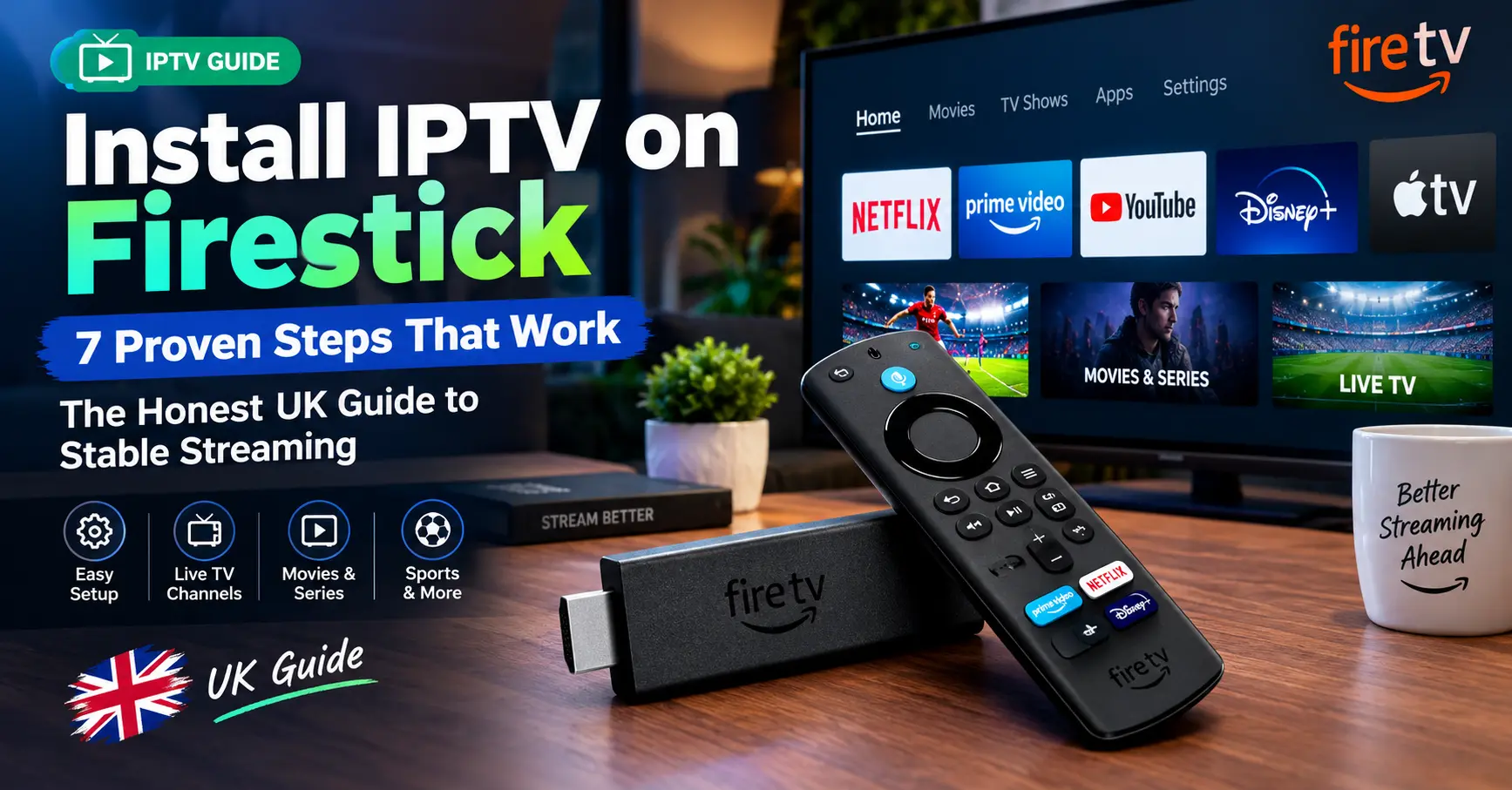
Last winter my brother-in-law Dave rang me on a Sunday afternoon, sounding like a man who’d lost an argument with a remote control. He’d bought a Firestick, signed up to a streaming service a mate had recommended, and spent three hours getting nowhere. I asked him one simple question, which was whether he knew how to install IPTV on Firestick without tripping over the security settings.
He didn’t, and honestly, most people don’t. The process isn’t hard, but the instructions floating around online are either ancient or written by someone who clearly never held a Fire TV remote. So here’s the version I wish I’d handed Dave, tested on my own stick. By the end, you’ll know how to install IPTV on Firestick, choose a provider that won’t vanish in a month, and fix the buffering that ruins match night.
I’ve tested streaming gear for well over a decade, from early Sky boxes to the latest Fire OS sticks. That time taught me one thing above all else. A smooth setup comes from good habits, not clever tricks.
Before You Install IPTV on Firestick, Check These Three Things
Every dodgy story I’ve heard about people trying to install IPTV on Firestick started with skipped preparation. Spend ten minutes here and you’ll save yourself an entire evening of swearing at the telly. Here’s what to sort out first.
- A steady connection. Aim for at least 25 Mbps for HD and 40 Mbps or more for 4K, ideally over 5GHz wifi or a wired ethernet adapter.
- An up-to-date stick. Head to Settings, My Fire TV, About, and check for system updates before you touch anything else.
- A vetted subscription. Have your login details or playlist link ready before installing a single app.
Take that third item seriously. Plenty of people grab an app first and hunt for a service afterwards, then pay the first stranger who answers a message. That’s the wrong way round. Also, older Fire TV Stick Lite models struggle with 4K, so don’t expect miracles from the cheapest hardware.
Amazon’s Fire TV Stick range runs from the basic Lite up to the 4K Max, and any of them can do this job. The cheaper models just have less memory, so they’re slower to open big channel lists. If you’re buying new, the 4K Max is the one I’d pick.
Picking a Provider Without Getting Burned
Price is where most people stumble. A suspiciously low monthly fee feels like a bargain until the channels freeze during a Premier League kick-off and the seller stops replying. I’ve watched friends lose a full year’s payment that way, and it’s never a fun phone call.
Anyone weighing up offers right now should read Cheap IPTV Subscription or Costly Mistake? How UK Viewers Can Tell before handing over a penny. It covers the warning signs in far more detail than I can here.
Then there’s the question of who you’re buying from. A good IPTV Reseller will tell you plainly how their service works, offer a short trial, and answer questions like a human being. A bad one sells you twelve months upfront, goes quiet, and leaves you with a dead app.
If your goal is the best stable iptv experience, ignore headline channel counts. Ask about server uptime, ask about support hours, and ask what happens when a stream drops. Their answers tell you more than any glossy sales page ever will.
Would you buy a second-hand car without a test drive? Then don’t buy a year of streaming without a trial either.
Trials aren’t perfect, mind you. Weak servers crack during evening peaks, so test yours between 7pm and 10pm rather than on a quiet Tuesday morning. If the picture holds up when everyone else is watching, that’s a promising sign.
Red Flags Worth Walking Away From
Red flags are easy to spot once you know them. Payment only by bank transfer or gift card is a warning, as is a seller who refuses a trial. Be wary too of anyone promising every channel on Earth for a few pounds a month.
Reviews deserve a little scepticism as well. Five-star praise on a seller’s own site proves nothing, so check independent forums and read recent threads rather than old ones.
How to Install IPTV on Firestick in Seven Steps
Right, onto the main event. These steps to install IPTV on Firestick work on current Fire TV Stick models, including the 4K and 4K Max, though menu names shift slightly between Fire OS versions.
- Find the Downloader app. From the home screen, choose Find, then Search, and type Downloader. It’s the orange icon made by AFTVnews, and it’s free in the Amazon Appstore. Install it.
- Switch on installs from unknown sources. Open Settings, My Fire TV, Developer Options, then Install Unknown Apps, and turn Downloader on. Older software calls this Apps from Unknown Sources.
- Open Downloader and allow access. Say yes when it asks for permission to reach storage, otherwise it can’t save the installer file.
- Type in the app’s web address. Your provider or the player’s official site will give you the link. Enter it slowly, since one wrong character sends you somewhere else entirely.
- Download and install. Wait for the file to finish, select Install, then choose Open once it’s done.
- Add your details. Most players ask for a username, password and server address, or an M3U link or Xtream Codes login from your provider.
- Delete the installer. Downloader offers to remove the file afterwards. Say yes, because it frees up precious storage.
Honestly, that’s all it takes to install IPTV on Firestick. Seven steps, roughly fifteen minutes, and most of that is typing with the clunky remote. Download the Fire TV app on your phone and you can use its keyboard instead.
Missing Developer Options? Don’t panic. Go to Settings, My Fire TV, About, then press the select button on your device name seven times. The menu appears like a magic trick.
Your First Launch After You Install IPTV on Firestick
Expect a slow first load. The player downloads your channel list and guide data, and big playlists can take a minute or two to settle.
Once it finishes, pin the app to the front row of your home screen. Press the menu button while the app is highlighted, then choose Move. It’s a tiny job, but you’ll appreciate it every single evening.
Browse the channel list and mark your favourites straight away. It saves endless scrolling later, and the guide loads quicker when you’ve trimmed the clutter.
Which App Should You Actually Use?
Installing a player is the real work when you install IPTV on Firestick, because the stick ships without one. Your provider may recommend a particular app, so check that before choosing for yourself. If they don’t, these are the four I see most often.
| App | Best for | Setup style | Trade-off |
|---|---|---|---|
| IPTV Smarters Pro | First-timers | Login or Xtream details | Busy-looking interface |
| TiviMate | Guide lovers | Playlist or Xtream | Premium features cost extra |
| Kodi with PVR IPTV Simple Client | Tinkerers | Manual M3U playlist | Steeper learning curve |
| Provider’s own app | Simplicity | Login only | Locked to one service |
My daily pick is TiviMate, mainly for its clean programme guide. Smarters Pro is friendlier on day one though, and I’d point first-timers there. Neither is flawless, and anyone claiming otherwise is selling something.
Do You Need an iptv box Instead?
Fair question. Some readers hesitate to install IPTV on Firestick and wonder whether a proper box makes more sense. A Firestick is cheap, tiny and fine for most households, but a dedicated iptv box has its place.
Boxes such as the Formuler Z series or MAG devices are built around IPTV. They usually include wired ethernet as standard, remotes designed for live TV, and extra storage for caching. If you’re curious, our guide to picking the right iptv box for your living room covers the options.
Cost is the catch though. A decent iptv box can run to three or four times the price of a Firestick, and you’ll still need a working subscription. For a spare bedroom telly, I’d stay with the stick.
Power is worth a thought too. Boxes draw more electricity than a stick, which sips almost nothing, though neither will make a visible dent in your bill.
Where wifi struggles, a wired box wins easily. In a flat with a strong signal, the stick copes perfectly well. Your own house decides this one, not any review.
Stopping the Buffering Before It Starts
Most complaints I get after readers install IPTV on Firestick are about buffering, not setup. And nine times out of ten, the cause is closer to home than the provider.
- Use ethernet. Amazon sells a Fire TV ethernet adapter, and it removes wifi guesswork entirely.
- Move the router. Lifting it off the floor and closer to the telly helps more than you’d think.
- Restart weekly. Go to Settings, My Fire TV, Restart, and do it once a week.
- Clear the cache. Find it under Settings, Applications, Manage Installed Applications.
- Pause other downloads. Game updates upstairs can flatten a live stream.
- Lower the quality. Try a lower resolution in the player settings before blaming anyone.
None of these fixes cost money, apart from the ethernet adapter. Work through them in order before you consider switching providers.
Boxing Day taught me this lesson the hard way. I spent an afternoon blaming my Firestick, when the real culprit was a tablet downloading game updates upstairs.
Still struggling? Run a speed test on the same wifi, then check whether other apps such as iPlayer run smoothly. If they do and your IPTV app doesn’t, the server is the likely culprit.
Why does it always fall apart at 7:45 on a Saturday? Because that’s when thousands of people tune in, and weak servers can’t cope.
That’s when a service built to be the best stable iptv choice earns its fee, with enough capacity to handle peak demand. A trial during busy hours, as I said earlier, is the cheapest test you’ll ever run.
Tidying Up After Setup
Setup is only half the story once you install IPTV on Firestick. A tidy configuration keeps the whole thing pleasant to use six months from now. Spend ten minutes on it today and you won’t think about it again.
Begin with the programme guide. Most players pull guide data from a separate link, and if your provider supplied one, paste it into the settings so the schedule fills in properly. A missing guide is the number one reason people think their service is broken.
Next, set a PIN lock. Amazon’s own parental controls on Fire TV cover purchases and apps, while many IPTV players let you hide categories behind a code. If children use the same telly, this takes two minutes and saves one awkward conversation.
Finally, trim the clutter. Uninstall apps you never open, because a Firestick has limited storage and runs better with space to spare. Hide channel groups you’ll never watch, and the menus become much faster.
Ruthless, I know. But if I haven’t touched an app in a month, it goes, and my Firestick has never run better since I adopted that rule.
Three Mistakes I See Every Single Week
Reader emails follow a pattern. The same three slip-ups turn up again and again, and each one is easy to avoid.
Typing the Wrong Address
Downloader works like a basic browser, so a single mistyped character sends you to a different site. Copy the address from your provider’s official page and double check it before you press Go. The wrong address cost me an irritating hour the first time I tried to install IPTV on Firestick.
Paying for a Full Year Upfront
It’s tempting, since annual plans look cheaper. But with a new provider, start monthly. Move to a longer plan only after a few weeks of steady evenings and a couple of busy weekends.
Ignoring Updates
Fire OS and your player app both receive updates, and old versions break in odd ways. Channels vanish, the guide stops loading, or the app crashes on launch. A quick check once a month keeps most of this away.
Which of these three have you done? I’ve done all of them, and I’m not proud of it.
A Quick Word on Safety and the Law
Streaming through the stick is perfectly legal. What you watch, and where it comes from, is another matter.
Both the Intellectual Property Office and the Federation Against Copyright Theft have warned that unlicensed streams of paid-for content break UK law. Which? has also published guidance on the risks of dodgy streaming devices and sellers who disappear after payment.
Please ask any seller directly about licensing before you install IPTV on Firestick. A reputable IPTV Reseller won’t dodge the question, and if they do, walk away.
VPNs help with privacy on public networks, though they won’t make an unlicensed service legal. They can also slow your connection, so test with and without before you commit to one.
Your Next Evening on the Sofa
Now you know how to install IPTV on Firestick the sensible way, with the right settings, a sensible app and a provider you’ve tested. Nothing here needs special skills, only patience and a clear head.
Start with a trial, keep your setup tidy, and treat any deal that sounds too good with suspicion. Most of the problems I hear about come from rushing, not from the technology. Slow down and the whole thing works better than you’d expect.
Dave, by the way, is now on his third series of something he found on a quiet Tuesday night. He’s very smug about it.
Go on, grab the remote, put the kettle on and give it a go. If you get stuck, you know where to find me.
Frequently Asked Questions
Is it legal to install IPTV on Firestick?
Yes, the act of installing a player app is legal, because the Firestick is an ordinary streaming device. What matters is the content you watch through it. Services without proper licences for the channels they sell sit on the wrong side of UK copyright law. Ask any provider about licensing before you pay, and walk away if the answer is vague.
How long does it take to install IPTV on Firestick?
Around fifteen minutes for most people, including the first login. The download itself takes seconds on decent broadband. Most of the time disappears into typing credentials with the Fire TV remote. Using the Fire TV app on your phone as a keyboard speeds things up nicely.
What makes the best stable iptv service?
Consistency matters more than channel counts. Look for honest trials, quick support replies, and enough server capacity to cope with evening peaks. Test during busy hours, not at lunchtime. A provider that’s relaxed about trials is usually confident in its product.
Do I need an iptv box if I already own a Firestick?
Not usually. A Firestick handles live TV perfectly well for most households, particularly with an ethernet adapter. A dedicated iptv box makes sense if your wifi is poor or you want a remote built for live channels. Try the stick first, since it costs far less.
How do I choose an IPTV Reseller I can trust?
Look for a clear trial, transparent pricing and support that answers within hours. Check independent forums rather than the seller’s own testimonials. Avoid anyone who only accepts gift cards or demands a year upfront. If a question about licensing gets a vague reply, that tells you everything.


[…] setup constantly, so clear instructions help enormously. For that reason I point newcomers towards Install IPTV on Firestick: The Honest UK Guide to Stable Streaming before they send out a single […]