Here’s a claim that might annoy a few suppliers: most stream faults never start at the server. After years of fielding late-night messages from friends, family and small resellers, I’ve come to believe that sound IPTV Troubleshooting is mostly about the room the television sits in. It’s rarely about the provider at all.
This guide gives you the full routine I use, from the five-minute checks to the awkward edge cases. You’ll also find advice for the IPTV reseller who has to answer the message, and for anyone running an IPTV panel who wants fewer angry evenings. I’ll be straight about the limits too, because some problems really are the supplier’s fault. Good IPTV Troubleshooting means knowing which is which.
Why Most Streaming Faults Aren’t What You Think
Last winter a neighbour knocked on my door during a cup tie, convinced his provider had collapsed. His picture froze every few minutes, and he’d already rebooted the box twice. Ten minutes later I found the culprit, a powerline adapter plugged into a cheap extension lead beside a space heater.
That story isn’t unusual. Home networks are crowded places, with phones, consoles, laptops and smart speakers all pulling bandwidth at once. A stream that needs a steady flow suffers first.
So where should you begin? Good IPTV Troubleshooting starts with the nearest link in the chain, which is the device, then the network, then the app, then the supplier. Work outward, never inward, and you’ll save hours.
One honest caveat. Troubleshooting can’t rescue a service that’s been shut down. Ofcom and the Federation Against Copyright Theft have both warned about unlicensed streams, and a service that vanishes overnight isn’t a fault you can fix at home.
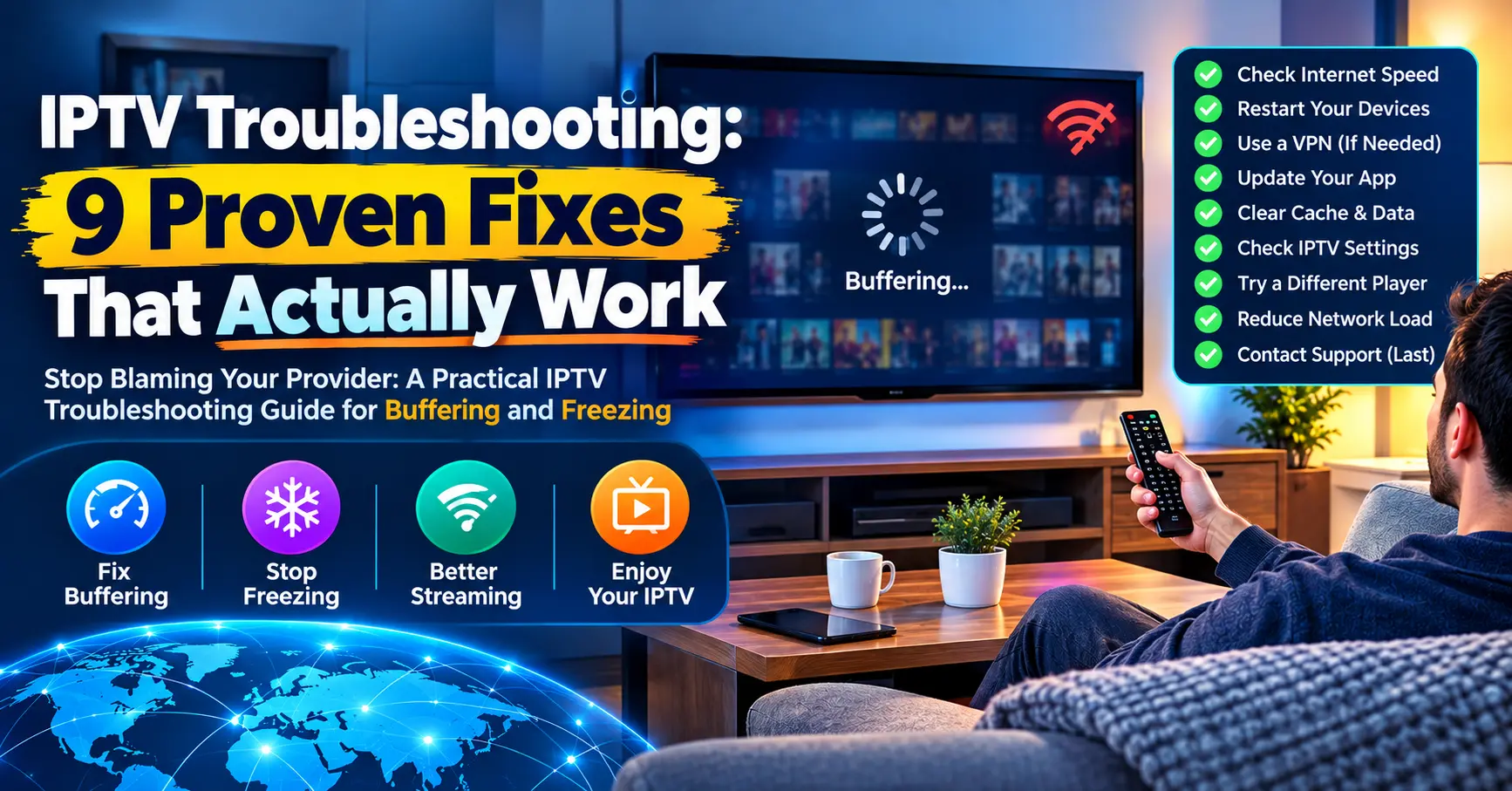
Nine Proven Fixes: My IPTV Troubleshooting Order of Attack
Run these IPTV Troubleshooting steps in order and stop the moment the picture steadies. Each takes under five minutes, and together they solve the large majority of complaints I see.
- Restart the device and the router. Unplug both for thirty seconds, then power up the router first. It clears stale connections better than a quick reboot from a menu.
- Check your real speed. Run Speedtest by Ookla from the same device. Netflix’s help pages suggest roughly 15 Mbps for 4K, and live streams are usually just as hungry, so use that as a sanity check.
- Plug in a cable. Ethernet removes Wi-Fi interference from the equation and tells you quickly whether the router or the room is to blame.
- Close the competition. Pause downloads, game updates and cloud backups, then retest.
- Clear the app cache. Stale data causes odd freezes and missing guides, especially on Android boxes and Fire TV sticks.
- Update the app and firmware. Old builds struggle with newer stream formats.
- Try a different DNS server. Switching to Cloudflare’s 1.1.1.1 or Google’s 8.8.8.8 sometimes cures slow channel loading, though it won’t help everyone.
- Lower the quality. Drop the resolution or raise the player’s buffer setting if the option exists.
- Test on a second device. If a phone works and the television doesn’t, the fault lives in the television setup.
Notice that none of these touch the supplier. Only when all nine fail do I start pointing fingers upstream.
Slow Connections Explained: IPTV Troubleshooting Beyond the Basics
Why Wi-Fi Lies to You
A full bar of signal says nothing about quality. Walls, microwaves and neighbouring networks all chip away at throughput, and the 2.4GHz band suffers worst. If your router offers 5GHz, put the streaming box on it and keep it within a room or two of the router.
Mesh systems help in larger homes, though they aren’t magic. A cheap mesh that links its nodes over the same wireless band halves your speed at every hop. I’d rather run one cable to a decent access point than buy three mediocre nodes.
The Eight O’Clock Collapse
Does the stream behave all day and fall apart at eight in the evening? That pattern points at congestion, either at your internet provider or on the supplier’s servers. Test a different streaming service at the same hour. If everything slows, it’s your line, and if only the IPTV stream suffers, it’s likelier to be the supplier.
Repeating patterns need a log with times and symptoms, because evidence moves support teams far faster than complaints do. Any serious IPTV Troubleshooting session should include one. A free tool such as PingPlotter can show packet loss over a week, which makes a convincing attachment.
When Login Fails or the Subscription Looks Expired
Login errors scare people more than buffering, yet they’re usually simpler. They’re also among the commonest IPTV Troubleshooting calls I get. Most turn out to be a typo, an expired line or a username with a stray space copied from a message.
Check the expiry date first. Then check whether the credentials were pasted with hidden spaces, which messaging apps love to add. Finally, confirm the subscription allows the number of simultaneous connections you’re trying to use.
When the app shows a blank screen instead of an error, the playlist address is often the problem. Re-enter it by hand rather than pasting, and make sure the app hasn’t switched from http to https behind your back. Some older players still choke on secure addresses.
Also, the time and date on the device matter more than you’d guess. A box with the wrong clock can reject a perfectly valid login. Set it to automatic and try again.
Picture, Sound and Guide Problems Decoded
Not every fault is buffering. Pixelated blocks, missing sound and a blank programme guide each have their own usual suspects. Match the symptom first and you’ll skip half the guesswork.
Pixelation that comes and goes usually means packet loss, which is a network problem rather than a stream problem. Pixelation on one channel only, at all hours, suggests the source feed is poor. Sound that drifts out of sync often responds to switching the audio output setting from automatic to stereo.
Missing sound on a single channel is typically an audio format your device can’t decode. Try a different player app, because a few handle surround formats better than others. Hardware decoding can be toggled in many players, and it’s worth flipping once to see whether it helps.
Programme guides deserve their own warning. They load from a separate source to the video, so a stream can work perfectly while the guide shows nonsense. Refresh it manually, then confirm the guide address in the app hasn’t changed.
VPNs, Routers and Provider Blocks
Some of the strangest faults come from tools people installed for other reasons. A VPN can slow a stream to a crawl, or it can fix a block your broadband provider has put in the way. Test with it on and off, and you’ll know within a minute.
Routers deserve suspicion too. Older models struggle once a household runs several streams, and some ship with security features that wrongly flag streaming traffic. Look for settings called SPI firewall, DoS protection or traffic shaping, and test with them disabled briefly. IPTV Troubleshooting sometimes means ruling out your own tools before blaming anyone else.
Provider blocks are the awkward one. Some UK internet providers have been ordered by the courts to block certain addresses, which means a stream can vanish for everyone on one network while working fine elsewhere. Check whether the problem follows the connection by trying the same app on mobile data.
I’ll say plainly that a VPN isn’t a cure-all. It adds latency, costs money and some suppliers frown on it. Use it as a test, not a habit.
Device Quirks That Cause Most of the Grief
Different hardware fails in different ways, and knowing the habits saves time. This table summarises what I’ve seen most often, though your own kit may vary.
| Device | Common symptom | Quick fix | Honest caveat |
|---|---|---|---|
| Amazon Fire TV Stick | Freezing after hours of use | Clear cache, restart weekly | Cheaper models run short of memory |
| Android TV box | Stuttering on 4K | Lower resolution, update firmware | Budget boxes can overheat |
| Smart TV built-in app | Slow menus, crashes | Update, or add a separate stick | Older sets rarely get updates |
| Mobile or tablet | Drops when moving around | Stay near the router, use 5GHz | Mobile data may be throttled |
| Laptop browser | Audio out of sync | Close tabs, update the browser | Decoding support differs by machine |
I’d steer most people away from relying on a smart TV’s built-in processor. They’re built to be thin and cheap, and the apps feel it. A £30 streaming stick often outperforms a £900 television at this single job.
IPTV Troubleshooting for the Reseller Behind the Panel
An IPTV reseller sits in the middle of the chain, which can be a lonely place. Customers blame you, you may blame the supplier, and the supplier might blame someone else. Your best defence is a system.
Your IPTV panel is the first tool to open. Check the account status, expiry and connection count before you ask the customer a single question. Half the time the answer is sitting right there on the screen, and your IPTV Troubleshooting process becomes a thirty second job.
Picking the right provider shapes how many of these tickets you’ll ever see. I’ve written separately about that, so read Select Before You Pick an IPTV Reseller Panel Provider, Read This → / iptv reseller panel provider before you commit. A weak supplier turns every small fault into your problem.
Keep a shared status note for outages too. When the supplier posts an incident, send your customers a short, honest message before they complain. People forgive an outage far more readily than silence.
Buy IPTV Credits Without Creating New Problems
Credits are stock, and bad stock causes bad service. Before you buy IPTV credits, treat the purchase like any other supplier decision.
- Start small. Order the smallest bundle and test it with a handful of real users.
- Check expiry rules. Some credits lapse if unused, so don’t stockpile.
- Pay traceably. Cards and PayPal offer some dispute protection, while crypto-only suppliers offer none.
- Time a test line. Watch it through a busy evening before you spend more.
- Keep records. Note the date, amount and supplier for every purchase.
The cheapest price is rarely the best. A rock-bottom credit cost usually means thin infrastructure, and thin infrastructure means more tickets for you. For a longer walkthrough, see how to buy IPTV credits safely → / buy iptv credits
Building a Support Script That Saves Your Evenings
Scripts get a bad name, but a good one sounds human. Mine is five short questions, asked in the same order every time, and it stops me forgetting the obvious. It also keeps my IPTV Troubleshooting consistent when I’m tired.
- What device and app are you using?
- Is it wired or on Wi-Fi?
- Does the problem hit every channel or just one?
- When did it start, and has anything changed at home?
- Does another device show the same fault?
Answers to those five usually point straight at one of the nine fixes. Skip the guessing and send the matching fix with a screenshot.
Add a short visual guide for the three or four devices your customers use most. Honestly, it’s the best hour you’ll spend on support this year. Customers feel looked after, and you feel less hunted.
Knowing When to Escalate to Your Supplier
There’s a point where home fixes stop working. If three different devices on three different networks all fail, the supplier is the likely cause. Gather evidence before you raise it.
Include the channel name, the exact time, the device and a screenshot or short phone video. Add the result of your speed test, because it rules out the obvious excuse. Concise tickets get answered faster, which is simple human nature.
Give them a fair window. Providers have bad nights, and a fault that clears within an hour isn’t worth a war. A fault that repeats weekly is, and that’s when you start comparing alternatives.
I keep a notebook of every incident for each supplier I work with. After three months it tells me more than any sales page ever could.
Troubleshooting rewards patience more than technical genius. Work outward from the device, keep notes, and stay honest with customers. Do that, and strong IPTV Troubleshooting becomes a habit instead of a panic. Next time a stream freezes at the worst possible moment, you’ll know exactly where to look first.
Frequently Asked Questions
What is the first step in IPTV Troubleshooting?
Restart the device and router, then run a speed test from the same device. These two checks catch most faults in under five minutes. Next, try a wired connection to take Wi-Fi out of the picture. Only after that should you look at the app or the supplier.
Why does my IPTV buffer only in the evening?
Evening buffering usually means congestion, either on your home network or at the supplier’s end. Test another streaming service at the same hour to see which. If everything slows, speak to your internet provider. If only the IPTV stream struggles, keep a log and show it to your supplier.
How can an IPTV reseller reduce support tickets?
Publish a short setup guide with screenshots for the common devices. Use a five question support script so you gather the right details first. Send renewal reminders three days before expiry, since many tickets come from forgotten expiries. Finally, check your IPTV panel before replying so you already know the account status.
Is it safe to buy IPTV credits from any panel provider?
No, and cheap anonymous panels are the usual culprits when things go wrong. Start with the smallest bundle, pay by a traceable method and watch a test line over a busy weekend. Ask for written proof of licensing as well. A supplier who won’t answer that has answered anyway.
Can IPTV Troubleshooting fix a service that has disappeared?
Unfortunately not. If a supplier has been shut down or has simply vanished, no router setting will bring it back. Regulators such as Ofcom have warned about unlicensed services, and those can end without notice. Choosing a licensed, transparent provider is the only real protection. Keep records so you can claim refunds where you’re entitled.