A subscriber emailed us last winter, furious. He’d paid for a clean, licensed feed, installed Stremio, pasted in his playlist, and watched it stall every ninety seconds during a Saturday match. He was ready to cancel. The playlist was fine. His provider was fine. The problem was that he’d done the one thing almost everyone does when they first try to setup IPTV on Stremio: treated it like a finished TV box instead of what it actually is, an empty shell that does nothing until you bolt the right add-on onto it and point that add-on at the right source.
That distinction is the whole game. Once you understand it, most of the pain disappears. This guide walks through how to configure things properly, what tends to break under real-world conditions, and the quieter infrastructure reasons your stream behaves the way it does.
Understanding What Stremio Actually Does
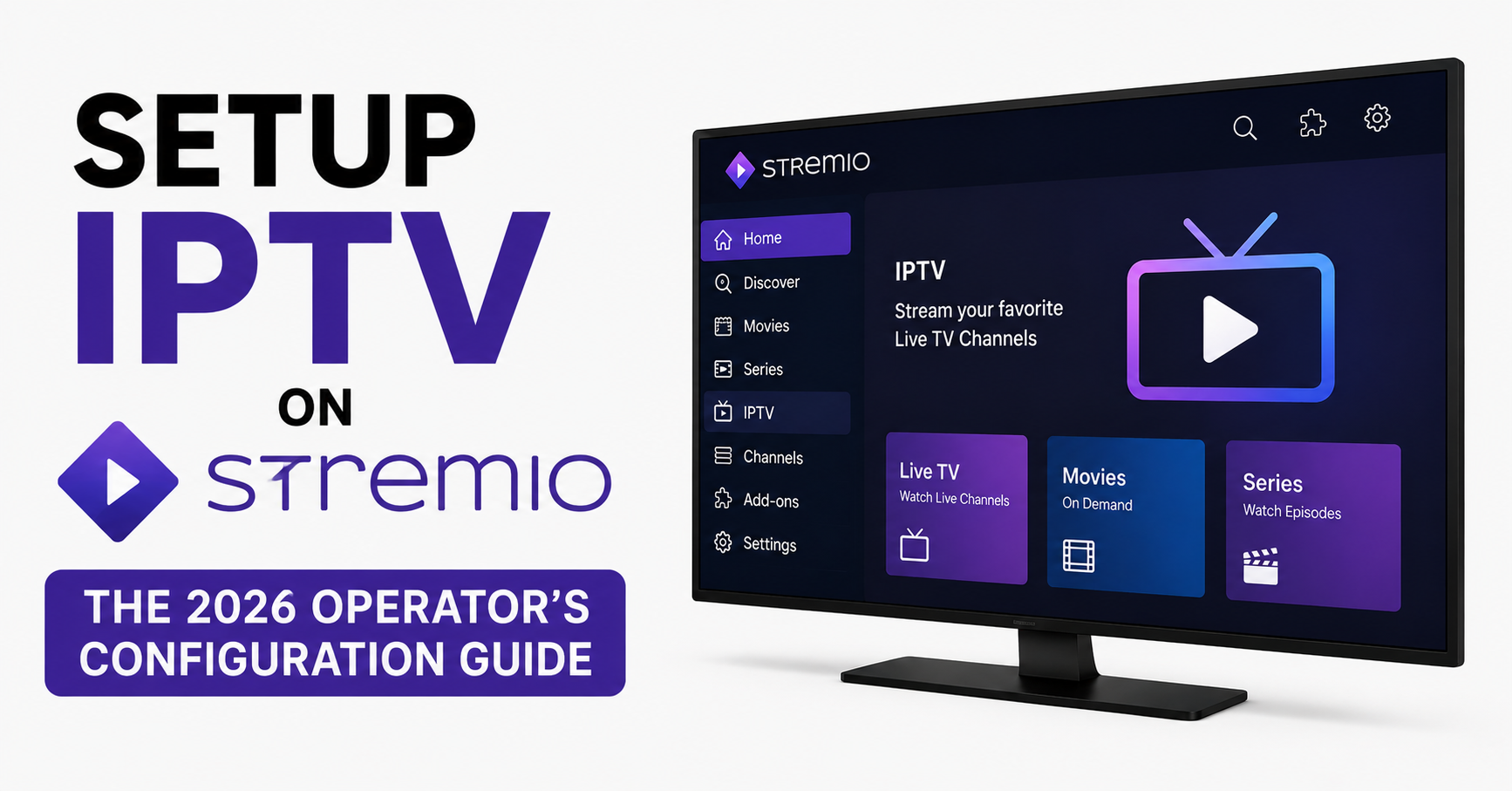
Stremio is a media aggregator. On its own it has no channels, no feeds, nothing. It’s a player and a catalogue browser that pulls everything through add-ons. When someone says they want to setup IPTV on Stremio, what they really mean is: install an add-on that accepts a playlist, feed it a legitimate source from their provider, and let Stremio handle playback.
This matters because nearly every complaint we field traces back to confusion about which layer is broken. Is it Stremio? The add-on? The playlist? The provider’s server? Your own connection? People blame the app for problems that live three layers down.
Pro Tip: Before troubleshooting anything visual, separate the four layers in your head: app, add-on, playlist source, network path. Ninety percent of “Stremio is broken” tickets are actually one specific layer failing while the other three work perfectly.
The Configuration Path That Actually Works
Here’s the sequence we walk new users through. Order matters more than people expect, and installing things out of sequence is a surprisingly common reason setups silently fail.
Install Stremio on your device and create or sign into an account (the account syncs your add-ons across devices, which saves you reconfiguring later). Obtain your M3U playlist URL or Xtream Codes credentials directly from your provider’s panel, don’t retype these by hand. Install an M3U or Xtream-compatible add-on from Stremio’s add-on catalogue. Paste the playlist URL or enter the Xtream host, username, and password exactly as supplied. Let the add-on load the catalogue fully before testing playback, since rushing this step is why half-loaded channel lists look like errors.
That’s the clean path. The trouble starts in the gaps between those steps.
Why M3U and Xtream Setups Fail Differently
These are the two ways providers hand you access, and they break for completely different reasons. Knowing which one you’re using changes how you diagnose problems.
| Method | What you enter | Most common failure | What it usually means |
|---|---|---|---|
| M3U URL | A single long link | Playlist loads empty or partial | URL expired, or special characters in the link got cut off on paste |
| Xtream Codes | Host, username, password | “Authentication failed” | Wrong port, trailing space in a field, or account capped on connections |
A mistake we repeatedly see: users paste an M3U link that their email client or chat app has helpfully turned into a clickable hyperlink, silently truncating everything after a special character. The add-on receives half a URL and reports an empty playlist. The fix is dull but reliable: copy the raw link from the provider panel, not from a message.
Pro Tip: If your Xtream login fails but the credentials look correct, count the connection slots first. A capped IPTV reseller account with a two-stream limit will reject a third login with an error that looks like a password problem. We’ve watched people reset passwords for an hour chasing what was actually a connection limit.
Getting Buffering Diagnosis Right
This is where most frustration concentrates, and the answer is rarely what users assume. When a stream buffers in Stremio, people instinctively blame their internet speed. After reviewing hundreds of these complaints, raw bandwidth is almost never the culprit on a modern connection. A live channel needs a stable few megabits, not a fast one.
The real causes cluster around three areas. Server-side load: during a major sports event, a provider’s edge server gets hammered, and your stream stalls not because your line is slow but because the source can’t push frames fast enough to everyone at once. Network path quality: latency and packet loss between you and the server matter far more than headline speed, so a 200 Mbps line with jitter can buffer worse than a steady 20 Mbps one. DNS routing: your device may be resolving the provider’s server to a distant or overloaded node when a closer one exists.
During one major fight night, we watched buffering complaints spike for users on a single ISP while everyone else streamed cleanly. The provider hadn’t changed anything. The ISP had started routing traffic through a congested peering point: same playlist, same app, same provider, a completely different path through the internet.
Pro Tip: Before assuming your provider is at fault during a big event, test a smaller, less popular channel from the same playlist. If that plays perfectly while the headline event stutters, you’re looking at event-driven server load, not a broken setup.
How DNS Quietly Shapes Your Stremio Experience
Most users never think about DNS, but it decides which server your add-on actually connects to. When you setup IPTV on Stremio, the playlist contains hostnames, and your device translates those into addresses through DNS. If that translation sends you to a slow or filtered route, everything downstream suffers.
We’ve noticed unusual ISP behaviour where certain providers’ resolvers either slow-walk or misdirect requests to streaming hostnames. The symptom is maddening: the playlist loads, the catalogue appears, but channels refuse to start or take fifteen seconds to begin. Switching the device’s DNS to a neutral public resolver frequently clears it instantly, not because it’s a magic fix, but because it bypasses a resolver that was quietly mishandling those lookups.
This is also why a setup that works flawlessly at home fails on mobile data. Different network, different DNS path, different result.
Device Compatibility: Where Stremio Setups Diverge
The same playlist behaves differently across devices, and this trips up families running IPTV on multiple screens. Here’s the practical reality we see in support.
Desktop (Windows/Mac) is the most forgiving: full add-on support, easiest to troubleshoot, best for initial configuration. Android and Android TV are generally solid, but cheaper boxes throttle when the hardware decoder can’t keep up with high-bitrate channels, and that’s a device limit, not a stream fault. Firestick works, but limited RAM on older models causes Stremio to stutter on large playlists, so trim your channel list if you can. iOS is the most restricted environment, with some add-on functionality curtailed by platform rules.
A reseller lost three customers in a month because he kept recommending the cheapest Android boxes to subscribers who wanted 4K channels. The boxes simply couldn’t decode the bitrate. The customers blamed his service. The hardware was the bottleneck the entire time.
The Reseller Side: How Setup Choices Affect Support Load
If you’re a reseller rather than an end user, how your customers setup IPTV on Stremio directly affects your support burden. This is the part that doesn’t get discussed publicly.
Every device variation, every DNS quirk, every connection-limit confusion lands in your inbox. The resellers who survive aren’t the ones with the cheapest panels, they’re the ones who give customers a tight, clear setup guide and reduce the number of ways things can go wrong. A clean onboarding document cuts ticket volume more than any infrastructure upgrade.
This is also where your upstream provider matters enormously. A panel with proper load balancing and failover means your customers’ Stremio streams stay up when one server hiccups, and providers with redundancy planning lose far fewer customers during outages. For resellers building on a stable foundation, working with an established panel like britishiptvreseller.com’s IPTV reseller infrastructure removes a category of problems you’d otherwise be debugging at midnight.
Pro Tip: Track which device your churned customers used before they left. We started logging this and found a single cheap streaming box accounted for a disproportionate share of cancellations. We stopped recommending it. Churn dropped.
The Connection Limit Trap
This one deserves its own section because it masquerades as a dozen other problems. Most IPTV accounts cap simultaneous connections. When a family sets up IPTV on Stremio across the TV, two phones, and a tablet, they quietly exceed their slot count.
The result isn’t a clear “limit reached” message. It’s random failures: one device works, another won’t start, a third boots the first one off mid-stream. Families spend hours convinced the service is unreliable when they simply need more connection slots or fewer simultaneous devices.
Quick connection-limit checklist: confirm how many simultaneous streams your plan allows, count every device that’s logged in including ones running in the background, fully close Stremio on devices not in use rather than just minimising them, and only contact your provider if failures persist on the correct device count.
A Practical Sequence for Cutting Buffering
When a stream stutters, work through this in order rather than randomly changing settings.
Test a different channel from the same playlist, which isolates server load from setup. Switch your DNS to a neutral public resolver to rule out routing problems. Try the same stream on a different device to separate hardware limits from source issues. Test on a different network, mobile data versus Wi-Fi, to expose ISP-path problems. Only after all four steps, raise it with your provider, since now you have diagnostic data instead of just “it’s broken.”
This sequence works because each step eliminates one of the four layers. By the end you know exactly where the fault lives, which is worth far more than a faster guess.
Security and Source Hygiene
When you setup IPTV on Stremio, you’re entrusting your credentials and traffic to an add-on. Be deliberate about it. Use add-ons from Stremio’s official catalogue rather than random links shared in forums, since an add-on sees your playlist and login. Keep credentials private, as sharing an Xtream login is the fastest way to blow past your connection limit and trigger the exact failures described above. And get your playlist directly from your provider’s panel, never from a third party promising “free” versions of a paid service.
Frequently Asked Questions
How do I setup IPTV on Stremio for the first time?
Install Stremio, create an account, then add an M3U or Xtream-compatible add-on from the official catalogue. Enter the playlist URL or Xtream credentials your provider gave you, exactly as supplied. Let the catalogue load fully before testing. The account step matters because it syncs your configuration across devices automatically.
Why does my Stremio IPTV stream keep buffering?
Buffering is rarely about your internet speed. It’s usually server load during busy periods, network path quality between you and the server, or DNS misrouting. Test a less popular channel first. If it plays fine while a big event stutters, you’re seeing event-driven server congestion, not a broken setup.
Is it legal to setup IPTV on Stremio?
It’s entirely legal when you connect Stremio to a service you’re licensed to access, a legitimate provider’s playlist for content they’re authorised to deliver. Stremio itself is legal software. The legality depends entirely on the source you feed it, not on the app.
My Xtream login says authentication failed, what’s wrong?
Check for a trailing space in any field first, then confirm the port number matches what your provider specified. If credentials are definitely correct, you may have hit your connection limit. An account already streaming on its maximum devices rejects a new login with an error that resembles a password failure.
Why does my setup work on Wi-Fi but not mobile data?
Different networks route through different DNS resolvers and peering paths. A mobile carrier may resolve or route your provider’s hostnames differently than your home connection. The playlist is identical, the path to the server isn’t. Switching your device’s DNS to a neutral resolver often resolves the discrepancy.
As a reseller, how do I cut down Stremio setup support tickets?
Give customers a single, tight setup guide and standardise the devices you recommend. Most tickets come from device variation, connection-limit confusion, and DNS quirks. Reducing the number of ways a setup can go wrong cuts your support load more effectively than any upgrade, and a provider with proper failover keeps streams stable during outages.
How many devices can use one IPTV account on Stremio?
It depends on your plan’s simultaneous connection limit, not on Stremio. Most accounts cap concurrent streams at a set number. A family running several screens can quietly exceed this, causing random failures that look like service problems. Check your plan’s slot count before adding more devices.
Do I need a powerful device to run IPTV on Stremio?
Not powerful, but capable enough to decode your channels’ bitrate. Cheap Android boxes and older Firesticks often struggle with high-bitrate or 4K channels, and that’s a hardware decoding limit, not a stream fault. A desktop is the most forgiving environment for both setup and troubleshooting.
Execution Checklist
Subscribers: copy your M3U or Xtream details directly from the UK IPTV Panel provider rather than retyping them, install add-ons only from Stremio’s official catalogue, switch to a neutral public DNS if channels load slowly, match your device to your channel bitrate before blaming the service, and close Stremio fully on devices you’re not using to protect connection slots.
You can setup IPTV on Stremio in five minutes, but keeping it stable is the part that separates a smooth service from a refund request. Get the source clean, understand the four layers, respect the connection limits, and most of the chaos never starts. That’s the difference between a setup that works on a quiet Tuesday and one that holds up when everyone tunes in at once.