
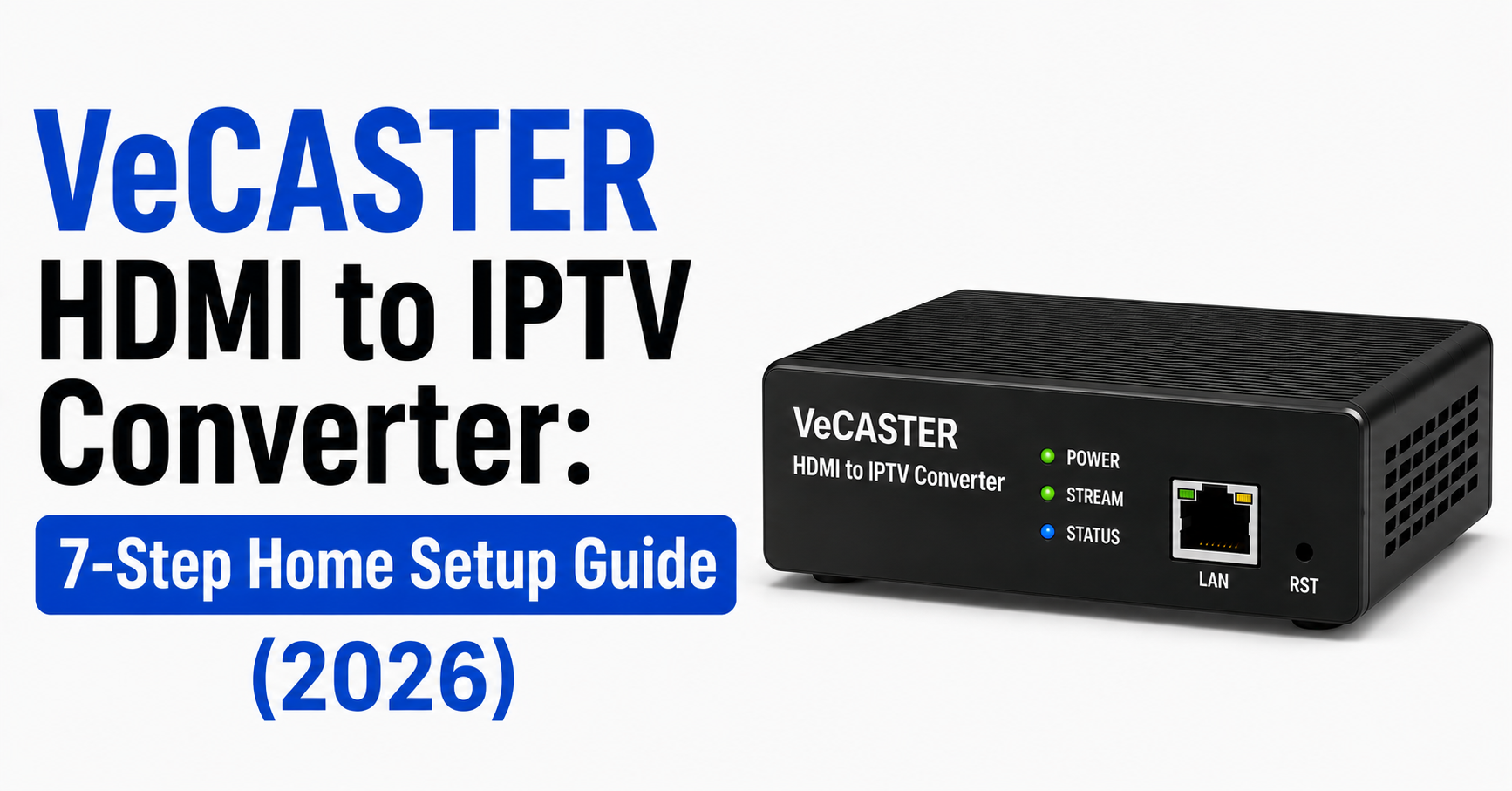
One satellite receiver. One HDMI cable. And somehow, you’re supposed to get that picture onto every screen in the house, the kitchen tablet, the bedroom smart TV, the laptop your kids refuse to put down. Running coaxial or HDMI splits to every room stopped making sense years ago. The VeCASTER HDMI to IPTV Converter exists precisely because that problem never had a clean consumer solution until encoding hardware dropped to a price point that made home deployment realistic.
This article is for anyone with a satellite dish on the roof and a desire to watch that feed everywhere without drilling through walls. Not theoretical. Not a spec-sheet copy-paste. Practical deployment, real pitfalls, and the things nobody tells you before the box arrives.
What a VeCASTER HDMI to IPTV Converter Actually Does Behind the Panel
Strip away the marketing language and here’s the function: the VeCASTER HDMI to IPTV Converter accepts an HDMI signal, in this case, from your satellite receiver, and re-encodes it into an IP-based stream. That stream travels over your home network instead of through physical cables. Any device connected to your Wi-Fi or Ethernet can then pick it up using a standard media player.
The encoding happens in H.264 or H.265, depending on the model. The output is typically an HLS or UDP/multicast stream. Your network router becomes the distribution backbone rather than a splitter box behind the TV stand.
Why does this matter for satellite owners specifically? Because satellite receivers output one HDMI feed. One. Without a converter, you’re watching on one screen or buying duplicate receivers and subscription cards.
Pro Tip: Before purchasing any VeCASTER unit, confirm whether your satellite receiver uses HDCP 1.4 or 2.2 on its HDMI output. Some models won’t handshake with encoders that don’t support the matching HDCP version, and you’ll get a black screen with no error message.
The Satellite-to-Stream Problem Most Households Get Wrong
Most people who search for multi-room satellite solutions land on RF distribution kits or HDMI-over-Cat5 extenders. Both work, technically. Both also require you to run physical cable between rooms, punch through walls, and accept signal degradation over distance.
The VeCASTER HDMI to IPTV Converter sidesteps all of that. Your satellite receiver stays in one room. The converter sits beside it, plugged into HDMI out and connected to your router via Ethernet. Every other screen in the house accesses the stream over the existing network.
Here’s where people get it wrong, though. They assume Wi-Fi alone is enough for the receiving end, it can be, but only on 5 GHz with strong coverage. They forget that the stream is a live encode, not a recording, so latency depends on encoder settings. And they don’t account for the network bandwidth the stream will consume alongside everything else on the network.
A single 1080p H.264 stream from a VeCASTER HDMI to IPTV Converter typically consumes between 5 to 10 Mbps on the local network. That’s nothing on a gigabit switch, but it matters on a congested Wi-Fi band shared with gaming, video calls, and cloud backups.
Hardware You Need Beside the Converter Itself
The VeCASTER HDMI to IPTV Converter doesn’t operate in isolation. The box is one link in a chain, and every other link has to hold.
The minimum setup list includes a satellite receiver with active HDMI output, the VeCASTER HDMI to IPTV Converter itself (confirm H.264 or H.265 model), a Cat5e or Cat6 Ethernet cable running from converter to router, do not use Wi-Fi on the encoder side, a router capable of handling multicast traffic (consumer routers often struggle here), and playback devices such as VLC, IPTV Smarters, TiviMate, or any M3U-compatible player on each screen.
Optional but strongly recommended additions include a managed switch if you’re feeding more than three playback devices, Powerline Ethernet adapters if running cable to the router isn’t feasible, and a UPS (uninterruptible power supply) for both the receiver and converter if clean uptime matters to you.
Pro Tip: Consumer mesh routers from brands like TP-Link Deco or Google Nest often block or mishandle multicast traffic by default. Check your router admin panel for an “IGMP snooping” or “multicast” toggle. Without it, streams from the VeCASTER HDMI to IPTV Converter may not reach devices on mesh nodes.
Step-by-Step Physical Setup Without the Guesswork
Enough theory. Here’s how the VeCASTER HDMI to IPTV Converter goes from boxed to streaming.
Start by powering off the satellite receiver. Connect an HDMI cable from the receiver’s HDMI OUT to the VeCASTER’s HDMI IN.
Next, connect the VeCASTER to your router using Ethernet. Not Wi-Fi. The encoding side needs a stable, low-jitter connection.
Power on both devices. The VeCASTER HDMI to IPTV Converter will boot and acquire an IP address via DHCP from your router.
Access the VeCASTER’s web interface from any browser on the same network. The default IP is usually printed on the unit or found via your router’s connected devices list.
Set the encoding parameters, resolution (1080p recommended for satellite content), bitrate (6 to 8 Mbps is the sweet spot for quality vs bandwidth), and streaming protocol (HLS for widest compatibility).
Copy the output stream URL from the VeCASTER dashboard. It will look something like: http://192.168.1.50:8080/stream.m3u8
Finally, paste that URL into VLC, IPTV Smarters, or any M3U player on your receiving device. Hit play.
That’s live satellite content, re-encoded and distributed over your home network, with no additional cables between rooms.
Encoding Settings That Actually Affect Your Viewing Experience
Out of the box, the VeCASTER HDMI to IPTV Converter defaults to conservative encoding settings. These are fine for testing but rarely ideal for daily satellite viewing.
Three settings control everything. Bitrate matters most, higher bitrate means better picture but more network load. For satellite content (mostly 1080i or 1080p), 6 Mbps is the floor for acceptable quality. Going below 4 Mbps introduces visible compression artefacts on fast motion, sports, in particular, turns into a smeared mess.
Keyframe interval determines how often the encoder sends a full reference frame. Lower intervals mean faster channel-change response but slightly more bandwidth. A 2-second keyframe interval is a good default.
Encoding profile matters too. H.265 (HEVC) cuts bandwidth nearly in half compared to H.264 at equivalent quality. But not every playback device supports H.265 decoding. Older smart TVs and budget Android boxes often choke on it.
The table below shows how conservative, recommended, and aggressive settings compare:
| Setting | Conservative | Recommended | Aggressive |
|---|---|---|---|
| Bitrate | 3 Mbps | 6–8 Mbps | 12+ Mbps |
| Keyframe | 4 sec | 2 sec | 1 sec |
| Codec | H.264 Baseline | H.264 High | H.265 Main |
| Latency | 6–10 sec | 3–5 sec | 1–2 sec |
| Network load | Low | Moderate | High |
If the household has multiple viewers tuning into the same stream, multicast is more efficient than unicast, one stream on the network, multiple listeners, no duplicated bandwidth.
Latency: The Thing Nobody Warns You About
Here’s what catches first-time users off guard with any VeCASTER HDMI to IPTV Converter deployment: the stream is not real-time. It can’t be. Encoding, packetising, buffering, and decoding all add delay.
Expect anywhere from 2 to 10 seconds of latency depending on your settings. That means if someone in the living room is watching the satellite receiver directly and someone in the bedroom is watching the re-encoded stream, the bedroom viewer will see events a few seconds later.
For most content, films, news, documentaries, this is completely irrelevant. For live sport, it becomes noticeable when the person in the next room cheers before your screen has caught up.
You can reduce latency by lowering the keyframe interval, reducing the buffer on the playback app, and using UDP transport instead of HLS. But each of those trades stability for speed. Lower buffers mean more chance of stutter on congested Wi-Fi. UDP drops packets without retransmission, so a weak signal means visual glitches rather than a brief pause.
Pro Tip: If low latency matters (live sport households), set the VeCASTER HDMI to IPTV Converter to UDP multicast with a 1-second keyframe interval and configure VLC’s network cache to 500ms. This gets you under 2 seconds of delay, but your network has to be solid, wired endpoints only.
Network Readiness: What Your Router Needs to Handle
Your home network was designed for web browsing and Netflix. A VeCASTER HDMI to IPTV Converter introduces a constant, uninterrupted video stream that behaves differently from typical internet traffic.
Key network considerations include bandwidth headroom, since a single 1080p stream at 8 Mbps is trivial on gigabit Ethernet but competes with everything on Wi-Fi. If three family members are streaming Netflix, on a Zoom call, and running a cloud backup, that 8 Mbps local stream is fighting for airtime on the wireless channel. IGMP snooping matters too, since multicast streams need this enabled on your router or switch. Without it, the stream floods every port on the network, consuming bandwidth even on devices that aren’t watching. And QoS (Quality of Service) helps if your router supports traffic prioritisation, assign the VeCASTER’s IP a high priority. This prevents the satellite stream from buffering when someone starts a large download.
Most consumer routers handle a single VeCASTER stream without issue. Problems surface when you add a second converter (maybe a second satellite receiver or a separate HDMI source) and the router starts dropping multicast packets.
HDCP: The Silent Deal-Breaker Nobody Explains Clearly
HDCP, High-bandwidth Digital Content Protection, is the copy-protection handshake embedded in HDMI. Every satellite receiver encrypts its HDMI output with HDCP. Every device receiving that signal needs to support the same HDCP version to display it.
The VeCASTER HDMI to IPTV Converter must handle this handshake. If it doesn’t, you see a black screen, a purple screen, or a “no signal” message. There’s no partial failure, it either works or it doesn’t.
Satellite receivers sold in the last five years typically use HDCP 1.4. Newer 4K receivers may use HDCP 2.2. Your VeCASTER model must match or exceed the HDCP version of the source device.
Before buying, check your satellite receiver’s HDCP version (usually in the settings menu under HDMI output), the VeCASTER model’s supported HDCP version (listed on the product page), and whether your HDMI cable is rated for the bandwidth both devices require.
A mismatch here is the single most common reason people return encoding hardware. It’s not defective, it’s incompatible.
Use Cases Beyond the Obvious Satellite Setup
The article has focused on satellite-to-stream, but once a VeCASTER HDMI to IPTV Converter is on your network, the use cases multiply. Some households discover these after the initial setup.
CCTV monitoring is one, a security DVR with HDMI output can feed into the VeCASTER encoder, making camera feeds viewable on any device in the house without dedicated monitoring software.
Gaming spectating is another, one console, multiple viewers. Someone plays in the game room; others watch the feed on the living room TV with only a few seconds of delay.
Presentation distribution works too, home offices or small businesses using a conference room display can broadcast that display to laptops around the building.
And archiving is possible as well, pair the VeCASTER output with a recording application (VLC can capture an HLS stream to file) and you have a basic DVR solution without subscription-based hardware.
Each of these uses the same stream URL. Nothing changes on the encoder side, only what you choose to do with the output.
Pro Tip: If you’re feeding a CCTV DVR into the VeCASTER HDMI to IPTV Converter, drop the encoding resolution to 720p and the bitrate to 3 Mbps. Security footage doesn’t need broadcast quality, and the reduced network load lets you run the stream 24/7 without impacting household internet performance.
Troubleshooting the Three Failures Everyone Hits
After setup, three problems account for nearly every support query related to the VeCASTER HDMI to IPTV Converter.
Black screen on playback device usually means an HDCP mismatch (covered above) or the stream URL is wrong. Double-check the protocol, HLS URLs end in .m3u8; if your player expects a raw UDP stream, the URL format differs. Also verify the VeCASTER and playback device are on the same subnet.
Buffering or stuttering is almost always a network issue, not an encoder issue. Move the playback device to wired Ethernet as a test. If buffering stops, your Wi-Fi is the bottleneck. Reduce the bitrate or move the device closer to the access point.
Stream works but drops after hours usually means the VeCASTER HDMI to IPTV Converter holds the stream as long as the HDMI signal is present. If your satellite receiver enters standby after inactivity, the HDMI signal drops and the stream dies. Disable auto-standby on the receiver, or set a timer to keep it alive.
These three cover roughly 80% of first-week issues. Everything beyond that is usually network topology, VLANs, double-NAT setups, or router firmware that silently blocks multicast.
What to Expect Long-Term: Reliability, Heat, and Firmware
Encoding hardware runs hot. The VeCASTER HDMI to IPTV Converter is doing real-time video compression continuously, and that generates consistent thermal output. Placement matters.
Don’t stack it directly on top of the satellite receiver. Don’t put it inside a closed AV cabinet without ventilation. The ideal spot is beside the receiver, on a surface with open air above and behind. Some users add a small USB-powered fan behind the unit for continuous airflow.
Firmware updates, when available, usually address encoding stability and protocol compatibility. Check the manufacturer’s support page quarterly. Encoder firmware isn’t glamorous, but a single update can fix stream drops that no amount of network tuning will resolve.
Long-term, a well-ventilated VeCASTER HDMI to IPTV Converter running at moderate bitrate settings (6 to 8 Mbps, H.264) should operate continuously for years. These are purpose-built encoding appliances, not repurposed consumer electronics, the internal components are rated for sustained workloads.
Frequently Asked Questions
Does a VeCASTER HDMI to IPTV Converter require an internet connection to work?
No. The VeCASTER HDMI to IPTV Converter operates entirely on your local network. It encodes the HDMI signal and distributes it over LAN. Internet access is not needed unless you want to access the stream remotely, which would require port forwarding and a stable upload speed from your broadband connection.
Can I watch the converted stream on my phone or tablet?
Yes. Any device running a media player that supports HLS or M3U streams can display the output. VLC is available on iOS and Android and works reliably. Simply enter the stream URL in the network stream option, and the satellite feed appears on your mobile screen.
How many devices can watch the stream simultaneously?
With multicast enabled, there’s no practical device limit on the encoder side, the stream is broadcast once, and any device can listen. The bottleneck is your network. On Wi-Fi, more than four or five concurrent viewers on the same access point may cause congestion and buffering depending on your router’s capabilities.
Will a VeCASTER HDMI to IPTV Converter work with a 4K satellite receiver?
It depends on the model. Entry-level VeCASTER units encode at 1080p maximum. If your satellite receiver outputs 4K, the converter will either downscale to 1080p automatically or fail to handshake if the HDCP version is incompatible. Check the specific VeCASTER model’s supported input resolutions before purchasing.
Does using this converter affect the picture on the main TV connected to the satellite receiver?
No. Most setups use the satellite receiver’s single HDMI output going into the VeCASTER. However, if you add an HDMI splitter before the converter, you can send one feed to the main TV and a duplicate to the VeCASTER HDMI to IPTV Converter, keeping both outputs active simultaneously.
Is there any monthly subscription or recurring cost for the VeCASTER?
None. The VeCASTER HDMI to IPTV Converter is a one-time hardware purchase. There is no cloud service, no licensing fee, and no subscription tied to the device. Your only ongoing costs are electricity and your existing broadband connection.
Can I record the stream for later playback?
Yes. Since the output is a standard network stream, any software capable of capturing HLS or UDP can record it. VLC has a built-in recording function, open the stream, click record, and it saves to a local file. Quality matches whatever encoding settings you configured on the VeCASTER.
Does the VeCASTER add any watermark or overlay to the stream?
No. The stream output is a clean encode of whatever the HDMI input provides. There are no manufacturer watermarks, no branding overlays, and no resolution restrictions applied by the device firmware on current VeCASTER models.
Your VeCASTER HDMI to IPTV Converter Deployment Checklist
- Confirm your satellite receiver’s HDCP version and HDMI output resolution before ordering
- Purchase the correct VeCASTER model matching your HDCP and resolution requirements
- Connect the encoder to your router via wired Ethernet, never Wi-Fi on the encoder side
- Access the VeCASTER web interface and set bitrate to 6–8 Mbps, keyframe interval to 2 seconds
- Enable IGMP snooping on your router to handle multicast traffic efficiently
- Test the stream URL on one device before rolling out to every screen in the house
- Disable auto-standby on your satellite receiver to prevent stream drops during idle periods
- Place the converter in a ventilated area, not stacked on hot equipment or inside closed cabinets
- Install VLC or an M3U-compatible player on every device that needs access
- Bookmark the VeCASTER dashboard IP for quick access to encoding settings and stream status
For expanded UK IPTV reseller Panel grade encoding solutions and multi-room IPTV panel setups, explore what’s available at britishseller.co.uk.