There’s a moment every streamer dreads. The scene is building. The crowd is going wild. And then, the wheel. That slow, spinning circle of digital disappointment. You’ve been there. So have I.
The difference between a night ruined by buffering and one spent actually watching what you paid for often comes down to one overlooked piece of hardware: the IPTV encoder box. Most people never think about it. They plug it in, press play, and hope for the best. This guide is for everyone who wants to stop hoping and start actually watching.
Why the IPTV Encoder Box Is the Quiet MVP of Your Living Room
Think of your home streaming setup like a chain. Your internet comes in, travels through your router, hits your device, and eventually reaches your TV. Most people obsess over internet speed. But the chain breaks where it’s weakest, and for millions of households, that weak link is the encoding stage.
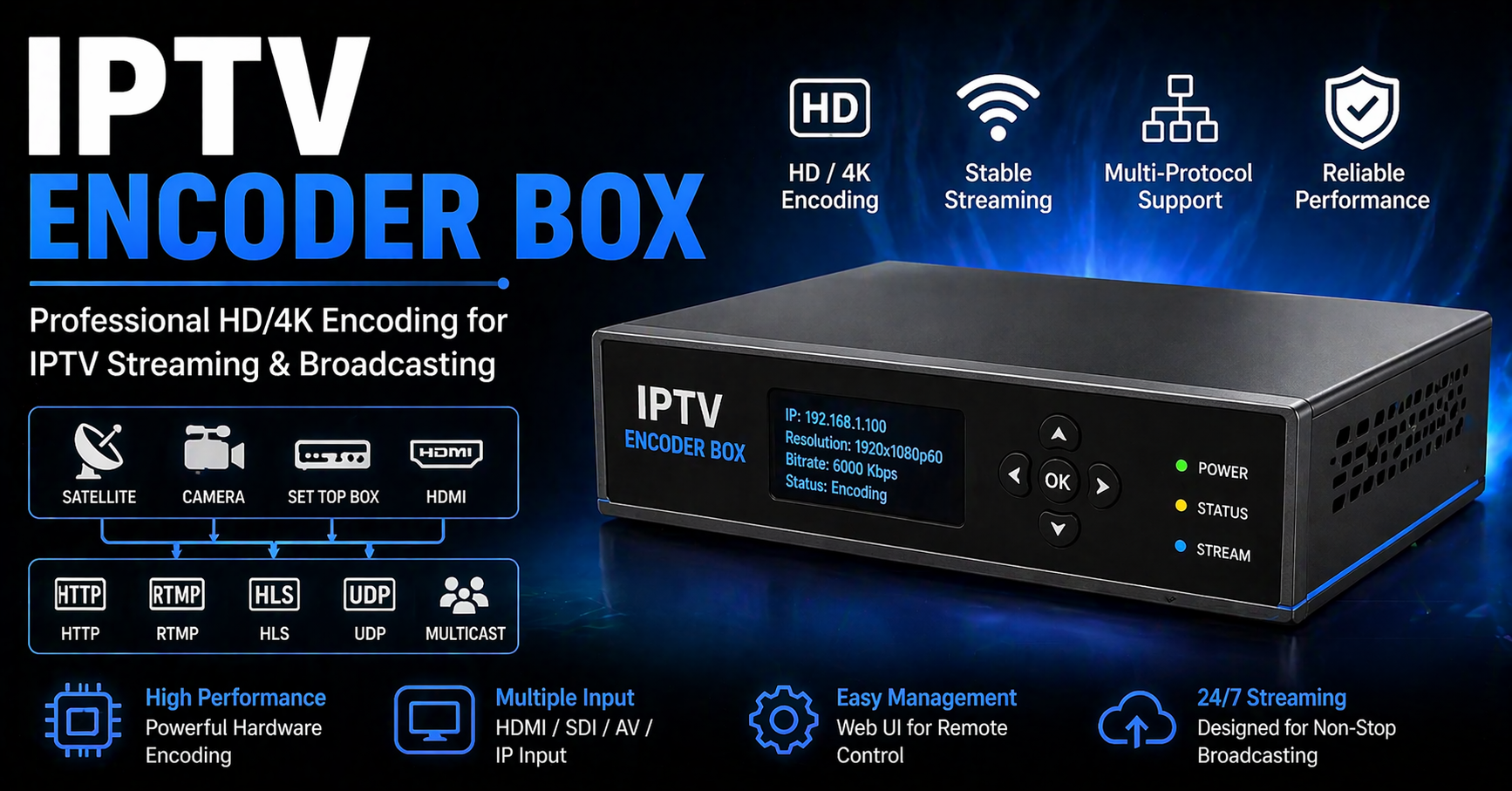
An IPTV encoder box takes a raw video signal and compresses it into a format your TV and network can handle cleanly. Without it working correctly, even a 500Mbps connection can look like a 2009 YouTube video on dial-up. It’s not about how much bandwidth you have. It’s about how efficiently your setup uses it.
This is a guide about the method of delivery and home optimization, not the source of the content.
The Night My Setup Failed Me (And What I Actually Learned)
Let me be straight with you. About two years ago, I was convinced my home network was bulletproof. I had upgraded to a mesh Wi-Fi system, bought what I thought was a decent streaming device, and told everyone the picture was going to be incredible.
It wasn’t. The IPTV encoder box I was using at the time was running on outdated firmware, pushing an H.264 stream when the source was sending H.265. My TV was receiving a signal that had been re-compressed twice, like making a photocopy of a photocopy. The edges of fast-moving shots looked like watercolor. Text in the corner of the screen was basically unreadable.
I spent forty minutes diagnosing the issue mid-stream. The fix took four minutes once I found it. That mismatch, codec input vs. output, is one of the most common problems nobody talks about.
The Invisible Bottleneck: Why Encoding Quality Tanks at the Worst Moments
Here’s the thing about home networks that most guides skip over. Your internet doesn’t slow down randomly. It slows down predictably, when multiple devices compete, when your neighbor’s network overlaps yours on the same frequency band, or when your IPTV encoder box is trying to process a high-complexity scene (think fireworks, fast crowd shots, rapid camera pans) at the same time your teenager is uploading a video.
Picture your Wi-Fi like a neighborhood road. The 2.4GHz band is the main street, everyone uses it, including your microwave, your baby monitor, and every smart bulb you’ve ever bought. The 5GHz band is the side road that most people ignore. Faster, less crowded, dramatically better for streaming. Your IPTV encoder box should always be pointed at 5GHz, or better yet, connected via ethernet so it never has to compete at all.
High-complexity scenes require more data per frame. An IPTV encoder box that isn’t configured for variable bitrate will try to push all of that data at once, exactly when your network is already under stress.
Optimal Viewing Settings for Live Sports and Action Content
This section matters more than people realize. Getting the hardware right is half the job. Getting the display settings right is the other half.
Contrast Ratio and Black Crush
When you’re watching high-energy live content like motorsport, basketball, or combat sports, shadow detail gets destroyed by a setting called “Black Crush.” Your TV’s contrast ratio determines how well it separates near-black shades. When Black Crush is too aggressive (often triggered by “Vivid” or “Dynamic” display modes), players in dark jerseys disappear into the background, night scenes lose depth, and the image looks punchy but hollow.
Set your TV to Cinema or Filmmaker mode. Reduce contrast to around 85. This lets your IPTV encoder box deliver the full tonal range it’s actually sending, rather than having your TV throw half of it away.
Motion Smoothing, Turn It Off
Almost every major TV brand ships with motion smoothing enabled. It makes content look like a soap opera shot on a handheld camera. The IPTV encoder box isn’t the problem here, your TV is “helping” by inserting artificial frames. Find the motion settings menu and disable it. The picture will look more cinematic and far more natural.
Audio: Boosting Dialogue Clarity
Even for action-heavy content, commentary and crowd audio should feel balanced. Most soundbars and TV speakers boost bass and treble, which muddies the mid-range where voices sit. If you’re watching through a soundbar, find the “speech enhancement” or “voice boost” setting. This pulls the center channel forward and makes commentary dramatically clearer without reducing the impact of crowd noise.
Your IPTV Encoder Box Setup Checklist
Before anything else happens, before you adjust a single display setting, run through this list.
Hardware
Confirm your IPTV encoder box supports the codec your service uses (H.264 or H.265/HEVC). Check your device specs against your service documentation.
Use an HDMI 2.0 or 2.1 cable. Older cables cap resolution and refresh rate.
Connect your IPTV encoder box via ethernet. If that’s not possible, ensure it connects to 5GHz only.
Position your router in the same room or use a powerline adapter.
Software
Update your IPTV encoder box firmware before the event, not during.
Clear the cache on your streaming app. Stale cache causes playback errors that feel like network issues but aren’t.
Set your stream quality to Manual 1080p rather than Auto. Auto quality adjusts downward under stress, right when you want it to be best.
Network
Set a QoS (Quality of Service) rule in your router settings to prioritize your IPTV encoder box over other devices.
Disconnect devices you aren’t using. A smart TV on standby is still pinging the network.
Restart your modem and router 30 minutes before a scheduled stream, not 5 minutes before.
Here’s a simple timeline you can follow in the week leading up to a big event, so nothing gets left to the last minute:
| Time Before Event | Action Item |
|---|---|
| 1 Week Before | Check that your IPTV encoder box firmware is current. Run a speed test and note your baseline latency. |
| 1 Day Before | Confirm codec compatibility. Download any app updates on your streaming device. |
| 3 Hours Before | Connect your IPTV encoder box via ethernet if possible. Set stream quality to Manual 1080p. |
| 1 Hour Before | Restart your router and modem. Clear streaming app cache. Disconnect unused devices from the network. |
| 15 Minutes Before | Do a test stream. Check audio sync. Confirm picture quality before you’re in the moment. |
Troubleshooting When Things Go Wrong Mid-Stream
Even with the best prep, sometimes things break the moment the stream starts. Here’s how to read the symptoms and get back on track fast:
| Symptom | Likely Cause | The Fix |
|---|---|---|
| Picture is fuzzy only on crowd shots or fast action | Low bitrate prioritization under stress | Switch from Auto to Manual quality at 1080p in your player settings |
| Audio and video are out of sync | HDMI handshake issue between IPTV encoder box and TV | Unplug HDMI cable, wait 10 seconds, reconnect |
| Stream drops every 20 to 30 minutes | IP session timeout on your connection | Check your IPTV encoder box settings for keep-alive or reconnect intervals |
| Picture freezes but audio continues | Decoder buffer overflow | Reduce resolution to 720p temporarily, clear cache, switch back |
| Image looks washed out on dark scenes | TV in wrong display mode (Vivid/Dynamic) | Switch to Cinema or Filmmaker mode, reduce contrast |
| Constant buffering despite fast internet | Wi-Fi band congestion | Force 5GHz connection or switch to ethernet |
Cable vs. Modern Streaming Setup: An Honest Comparison
Nobody should be told which option is right for them. But the facts are worth laying out side by side:
| Factor | Traditional Cable | Home Streaming + IPTV Encoder Box |
|---|---|---|
| Monthly Cost | Fixed, often includes channels you don’t watch | Flexible, pay for what you use |
| 4K Availability | Limited, dependent on provider infrastructure | Widely available through streaming services |
| Contract Commitment | Typically 12 to 24 months | Usually month-to-month |
| Hardware Required | Set-top box provided by cable company | IPTV encoder box, streaming device, stable router |
| Reliability | High, though outages still occur | Depends heavily on your home network quality |
| Flexibility | Watch at home only | Multi-device, multi-location capable |
| Picture Customization | Minimal | Extensive, through display and encoder settings |
Cable’s biggest advantage is simplicity. You plug it in and it works. The streaming advantage is everything else, if your setup is right.
For those managing access across multiple households or a large family structure, understanding how an IPTV Reseller structures accounts can help you avoid login conflicts during high-traffic events when multiple users connect simultaneously.
Read More: IPTV Reseller Panel
Myths Worth Correcting
“I need Gigabit internet for 4K.”
No. You need stable latency. A 25Mbps connection with consistent, low latency will outperform a 500Mbps connection with unstable ping. Your IPTV encoder box buffers ahead, it doesn’t need massive throughput, it needs predictability. Run a ping test, not just a speed test.
“Auto quality is the smartest option.”
Auto quality is the most convenient option. It is not the best option. During peak demand, Auto mode drops resolution to prevent buffering, which means your picture degrades exactly when the action peaks. Lock it to 1080p manually and let your IPTV encoder box maintain that standard.
“Buffering means my internet is too slow.”
Usually, it means your network is poorly configured, not underpowered. Wi-Fi band selection, QoS settings, and device competition matter more than raw speed for most households.
“Any HDMI cable will do.”
This one costs people more than they realize. An HDMI 1.4 cable caps at 1080p/60Hz. If your IPTV encoder box is outputting 4K HDR and your cable can’t carry it, you’ll see picture errors that look like codec failures.
Understanding the Backend (Without Getting Lost in It)
Curious about how large streaming operations manage user sessions and credentials? For those interested in the infrastructure side, understanding What Is an IPTV Reseller Panel is worth a read. It’s essentially the dashboard that organizes user credentials, and when it’s configured well, your individual connection is less likely to be interrupted during high-traffic periods. It ensures each viewer has a unique, authenticated session rather than competing on a shared token.
That backend stability directly affects the quality signal your IPTV encoder box receives at the front end.
Frequently Asked Questions
Does using an IPTV encoder box mean I’m accessing pirated content?
No. An IPTV encoder box is a piece of hardware, the same way a router is a piece of hardware. It encodes and decodes video signals. How you use it, and what content you access through it, is entirely determined by the services you subscribe to. This guide does not endorse, recommend, or facilitate access to unlicensed or copyrighted content. We are a guide about home optimization and the method of delivery only.
What’s the difference between H.264 and H.265 on my IPTV encoder box?
H.265 (also called HEVC) delivers the same picture quality at roughly half the file size of H.264. That means less data consumed, less strain on your network, and smoother performance. If your IPTV encoder box supports H.265 and your service offers it, always choose it.
How do I know if my IPTV encoder box is causing the problem, not my internet?
Run a speed test and a separate ping/latency test. If your speeds look fine but streams buffer, your IPTV encoder box settings, particularly codec selection, quality mode, and cache behavior, are the most likely culprit. Update firmware, clear cache, and test again.
Is it worth spending more on a premium IPTV encoder box?
For casual viewing, mid-range options perform well. For 4K HDR streams, live high-action content, or multi-room setups, the investment in a capable IPTV encoder box with H.265 support and dual-band connectivity pays off in reliability alone.
How much speed do I actually need for stable 4K streaming?
For a single 4K stream, 25Mbps is generally sufficient, provided latency is stable. If you’re running multiple streams through the same IPTV encoder box and home network simultaneously, 50 to 100Mbps is a safer baseline.
One Last Thing Before You Press Play
Everything in this guide is about getting out of your own way. The content you’re streaming has already been produced at incredible quality. The only question is whether your home setup is delivering it properly or quietly destroying it between the source and your screen.
Check your encoder settings. Lock your codec. Prioritize ethernet. Disable motion smoothing. And restart your router before the event, not during.
If you’re weighing the cost of your current setup against alternatives, it’s worth spending a few minutes on our Pricing Page to compare what optimized, stable streaming tools actually cost against the recurring price of a bad viewing experience.
One good night of streaming, no buffering, clean picture, solid audio, will make every step in this guide feel completely worth it.
This article is published for educational and home optimization purposes only. The content on this website does not host, stream, distribute, or provide access to any copyrighted material. All guidance relates exclusively to home network configuration, device settings, and streaming hardware optimization. This is a guide about the method of delivery and home optimization, not the source of the content.